

Get started
Embeint HTF connects a Python station runtime to a central application for test plans, station status, results, and logs. A station runs the test; the HTF application gives the team a shared view of what happened.
Embeint HTF is operated by Embeint Inc. Learn more about Embeint and its Infuse-IoT platform.
Before you begin
You need access to an HTF organisation, permission to create a project and station, a machine for the station runtime, and uv to run the Python sample. If you do not have an HTF account yet, contact Embeint.
Sign in
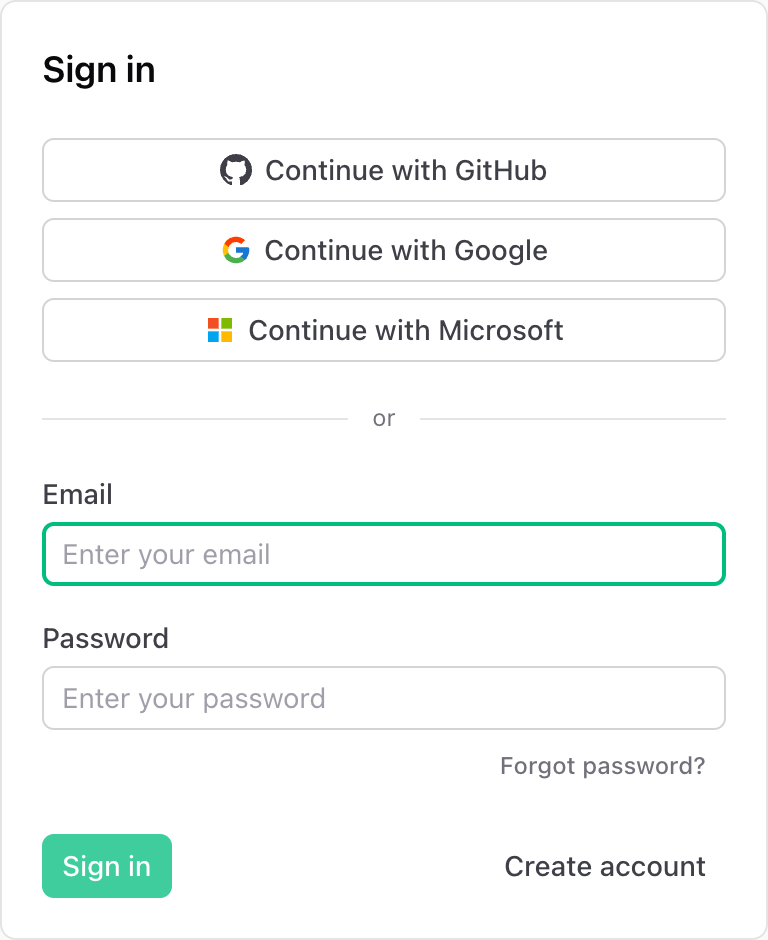
Open the Embeint HTF app and choose Sign in. Enter your account email and password or use the sign-in method configured for your organisation.
The first-run path
- Create a project. Sign in to HTF. If this is your organisation's first project, the onboarding page will prompt an organisation owner or admin to create one. Projects group stations by product line.
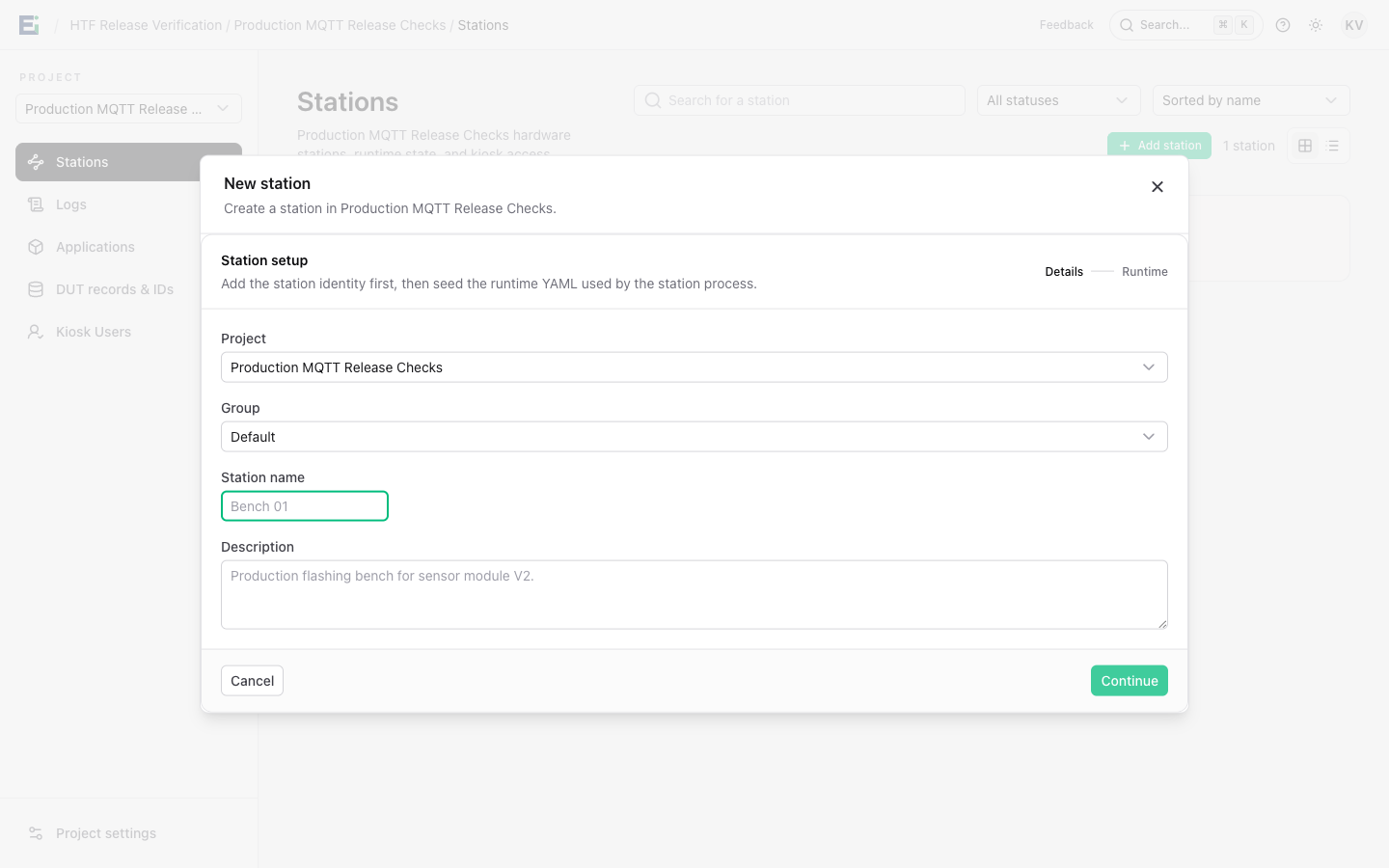
- Create a station. Open Stations, choose the project and a station group, enter a name, and paste the first-run runtime YAML.
- Save its identity. Copy the one-time API and MQTT keys and download the station TLS certificate bundle.
- Set up the station machine. Install the Python sample, add its local YAML and credentials, and save a disposable demo secret in HTF.
- Run a DUT. Start a local test, then run the station in listening mode and start a test from the kiosk.
- Inspect the result. Read the stage output in the terminal and HTF run logs.
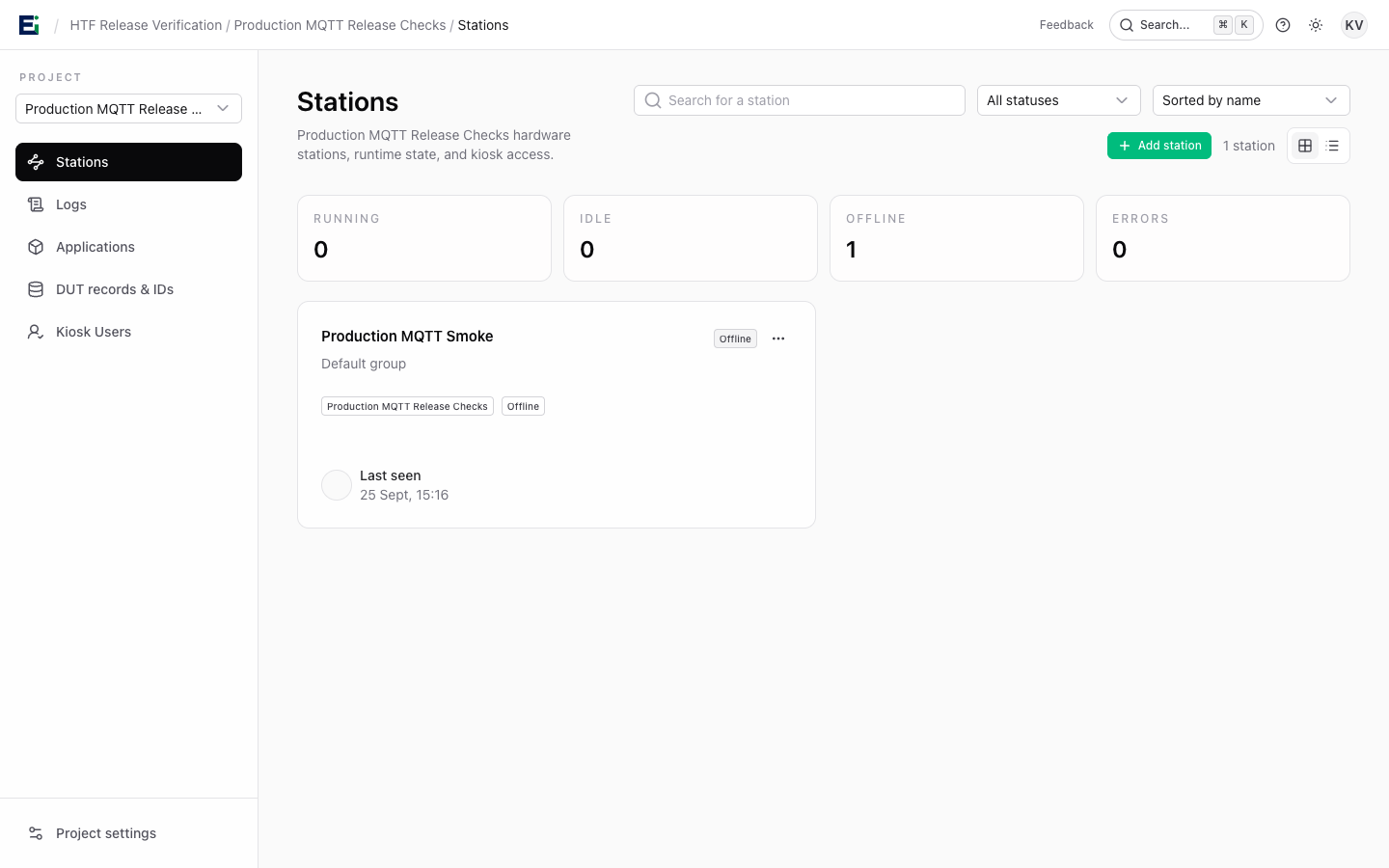
The Stations page shows each jig's current state. Select Add station to enter its project, group, and name, then continue to the runtime configuration step.
Next steps
Follow Your first station run for the complete copyable setup. Then read Core concepts to learn how projects, stations, run plans, and results fit together. When you are ready to work with hardware, see Station configuration.