

Applications and firmware
Applications is the project library for firmware archives. An application has an ID that station plans reference; each uploaded ZIP or 7z file is a version of that application. This walkthrough uses a HEX file inside a ZIP and shows both ways to get it back: downloading it in the browser and letting a station download it for a firmware stage.
The screenshots use a deliberately non-flashable documentation example in the demo workspace. For a real run, use a HEX file built for your hardware and test it on a bench before using it on a production line.
1. Put your HEX file in a ZIP
Suppose your build produced zephyr/zephyr.hex. From the build directory, create the archive and inspect its contents:
cd path/to/your/build
zip firmware-1.0.0.zip zephyr/zephyr.hex
unzip -l firmware-1.0.0.zip
The archive must contain the file at the path your station plan will use:
firmware-1.0.0.zip
└── zephyr/zephyr.hex
If your HEX file has another name or folder, use that path in both the zip command and the plan's path field. The station reads the path inside the archive, not the path to the ZIP on your computer.
2. Upload the version
- In HTF, open the project and select Applications.
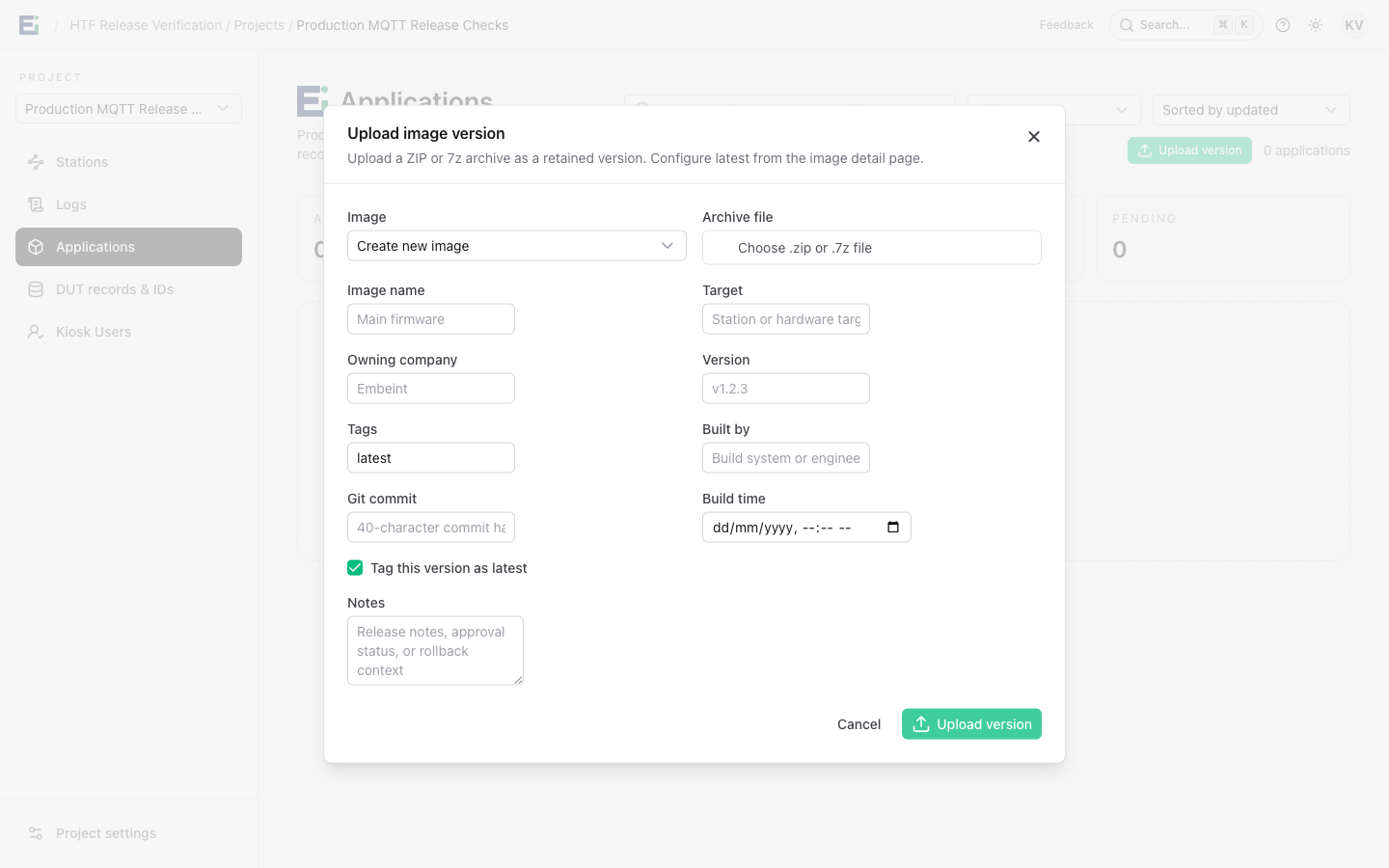
- Select Upload version and leave Image set to Create new image for the first upload.
- Choose
firmware-1.0.0.zipas the Archive file. Enter a clear Image name, the hardware Target, and Version1.0.0. - Add notes or build provenance if useful. Select Tag this version as latest only if this is the version that
latestshould resolve to. - Select Upload version. Wait for the application to show Ready. A pending version does not yet have a downloadable binary.
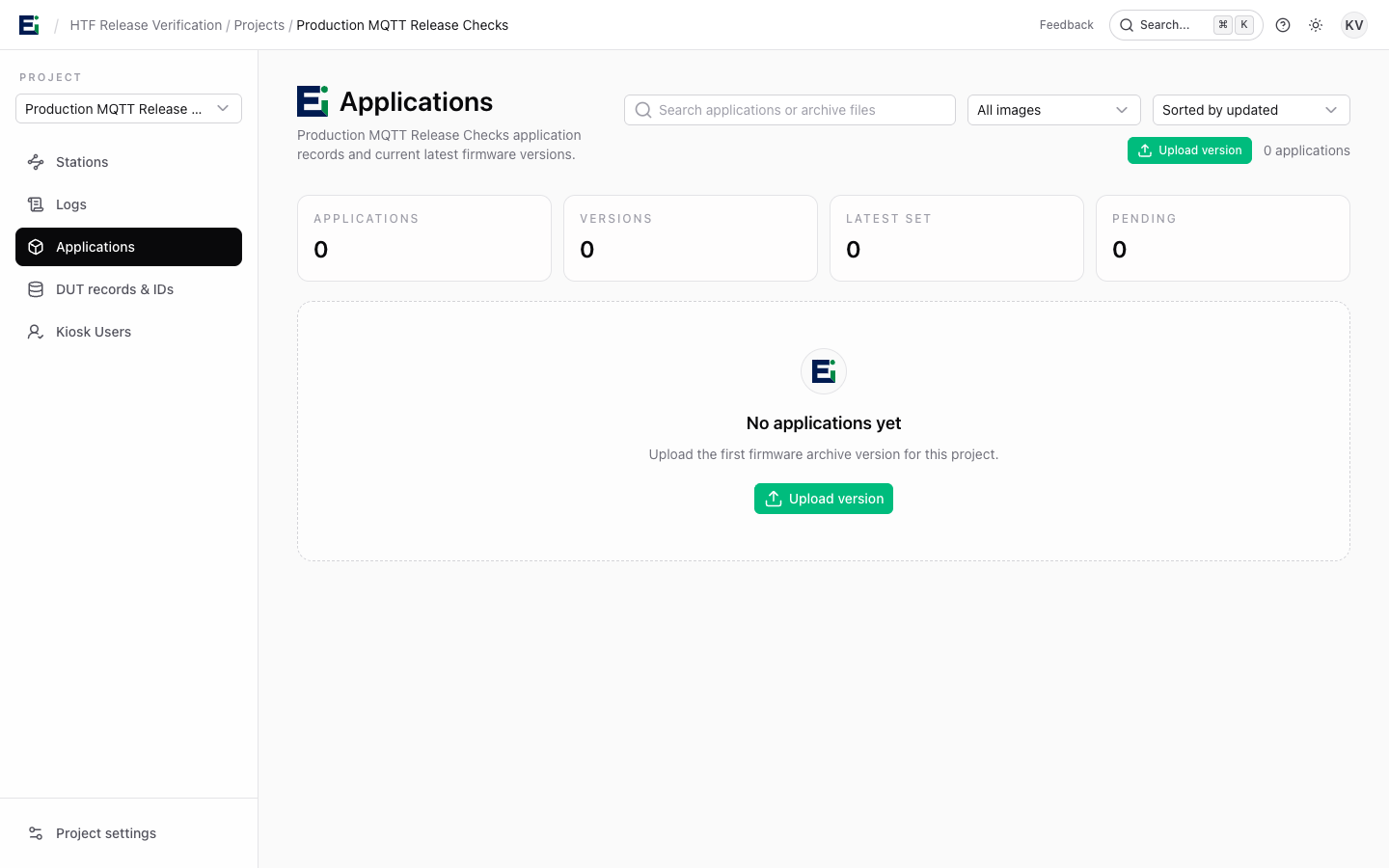
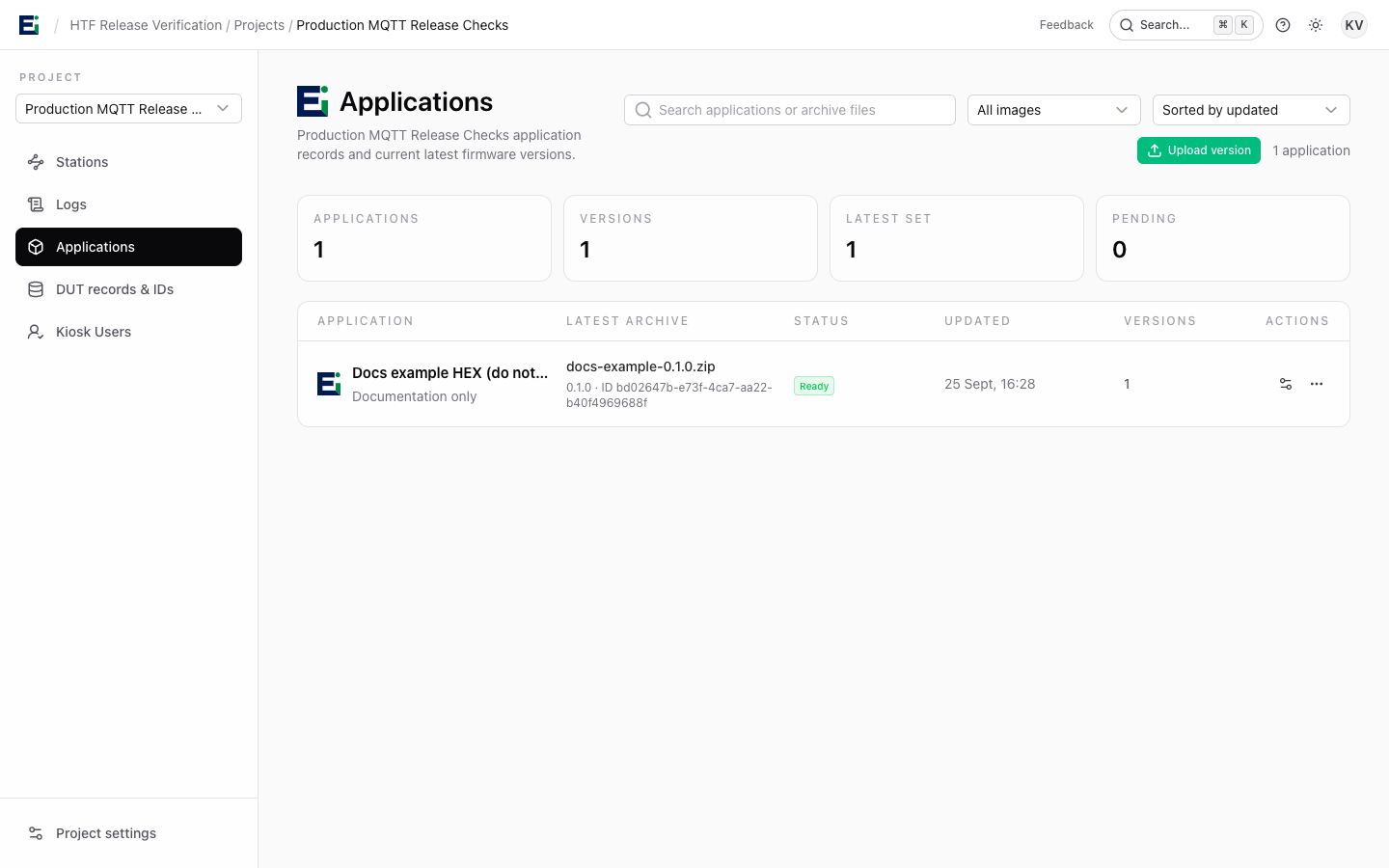
The application list then shows the archive, version, status, and number of retained versions. To add another build later, open the existing application and select Upload version; keep its application ID and add a new version.
3. Download and check the uploaded archive
Open the application. Its Application ID is the value to use as firmware_id in a station plan. The Versions panel lists the retained ZIP files. Select Download beside a version to open Version details, then select Download in that panel to save the ZIP in your browser.
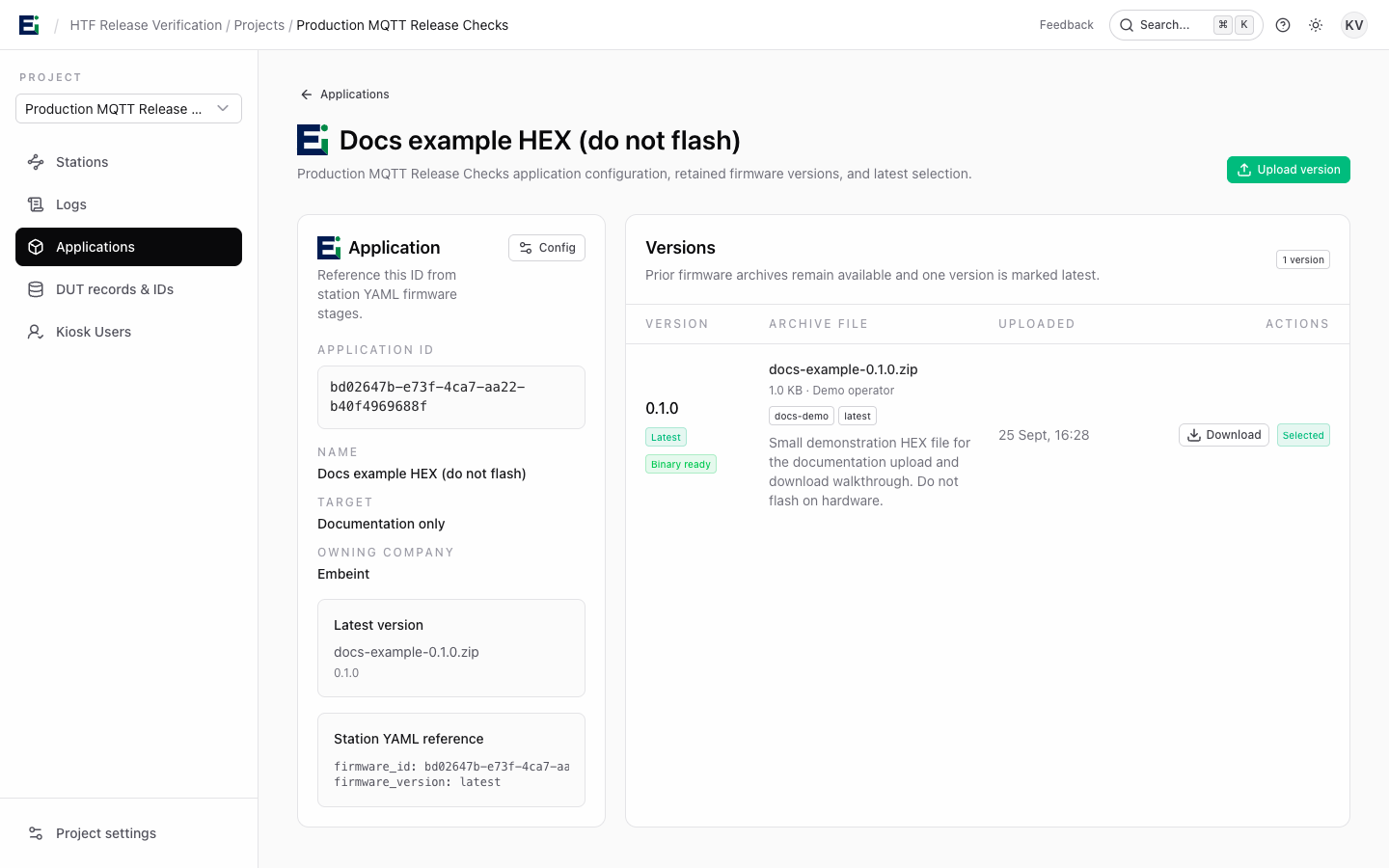
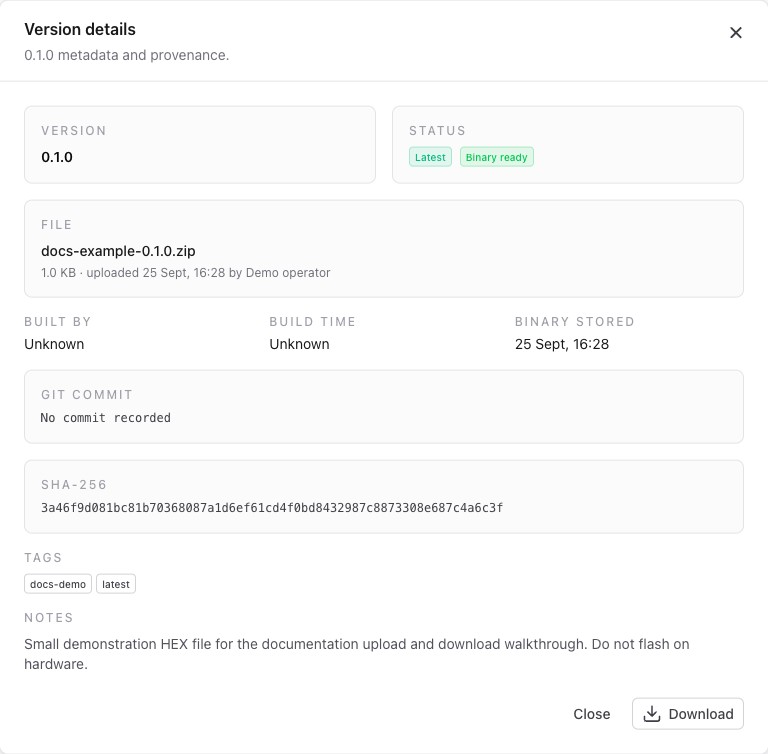
Check the downloaded file before using it. For example, if the browser saved it in ~/Downloads:
unzip -l ~/Downloads/firmware-1.0.0.zip
shasum -a 256 ~/Downloads/firmware-1.0.0.zip
On Linux, use sha256sum if shasum is unavailable. The checksum should match the SHA-256 shown in Version details. In the demo workspace, the downloaded documentation ZIP matched the uploaded file byte for byte.
4. Tell the station which file to use
The station needs a locally configured programmer. For a J-Link jig, add a programmer to its local config.yaml with the serial number and target for your hardware. The values below are illustrative:
programmers:
  - name: jlink_1
    kind: jlink
    serial_number: 823000667
    target_device: nrf54l15_xxca
Then open the station's Station configuration in HTF and add a firmware stage to its runtime YAML. Replace REPLACE_WITH_APPLICATION_ID with the ID displayed on Application detail, and use the path you saw in unzip -l:
stages:
  - name: Flash firmware
    kind: firmware_flash
    programmer: jlink_1
    firmware_id: REPLACE_WITH_APPLICATION_ID
    firmware_version: '1.0.0'
    path: zephyr/zephyr.hex
The programmer name must match the local configuration. Pin an exact firmware_version for a controlled build; latest follows whichever version is currently tagged latest. Save the runtime YAML with Save for station pull, then restart or reconnect the station to load that revision. See Configure a station for a plan with device recovery before flashing.
5. See the station download it
On the next run that reaches firmware_flash, the station resolves the selected version through the HTF API, downloads the ZIP, checks its SHA-256, extracts zephyr/zephyr.hex, and passes the extracted file to the programmer. The stage output includes lines like:
resolving firmware <application-id> (1.0.0)
using firmware file .htf-cache/firmware/<application-id>/<version-id>/extracted/zephyr/zephyr.hex
The station keeps the verified archive in .htf-cache/firmware/ and reuses it for later runs of the same version. Open the station's Run logs or kiosk Console output to see those lines. If the stage reports that the archive does not contain the file, compare the YAML path with unzip -l on the downloaded ZIP. If it cannot resolve the version, confirm the application ID, version string, Ready status, and that the application belongs to the station's project.