

DUT capture history
HTF v0.1.4 stores selected DUT values from station runtime v0.3.0 as structured observations. Each observation identifies its source run, lane, stage/subtest, timestamp, and configuration revision. This history is separate from the identifiers allocated by ID pools.
Find a DUT and its reports
- Open the project's DUT records & IDs page and select DUT records.
- Search by DUT ID, hardware ID, IMEI, or SIM identifier. Search includes historical captured values, so an old IMEI can still locate a DUT after its current value changes.
- Read Captured test data for the latest successful values, then select Test captures & reports.
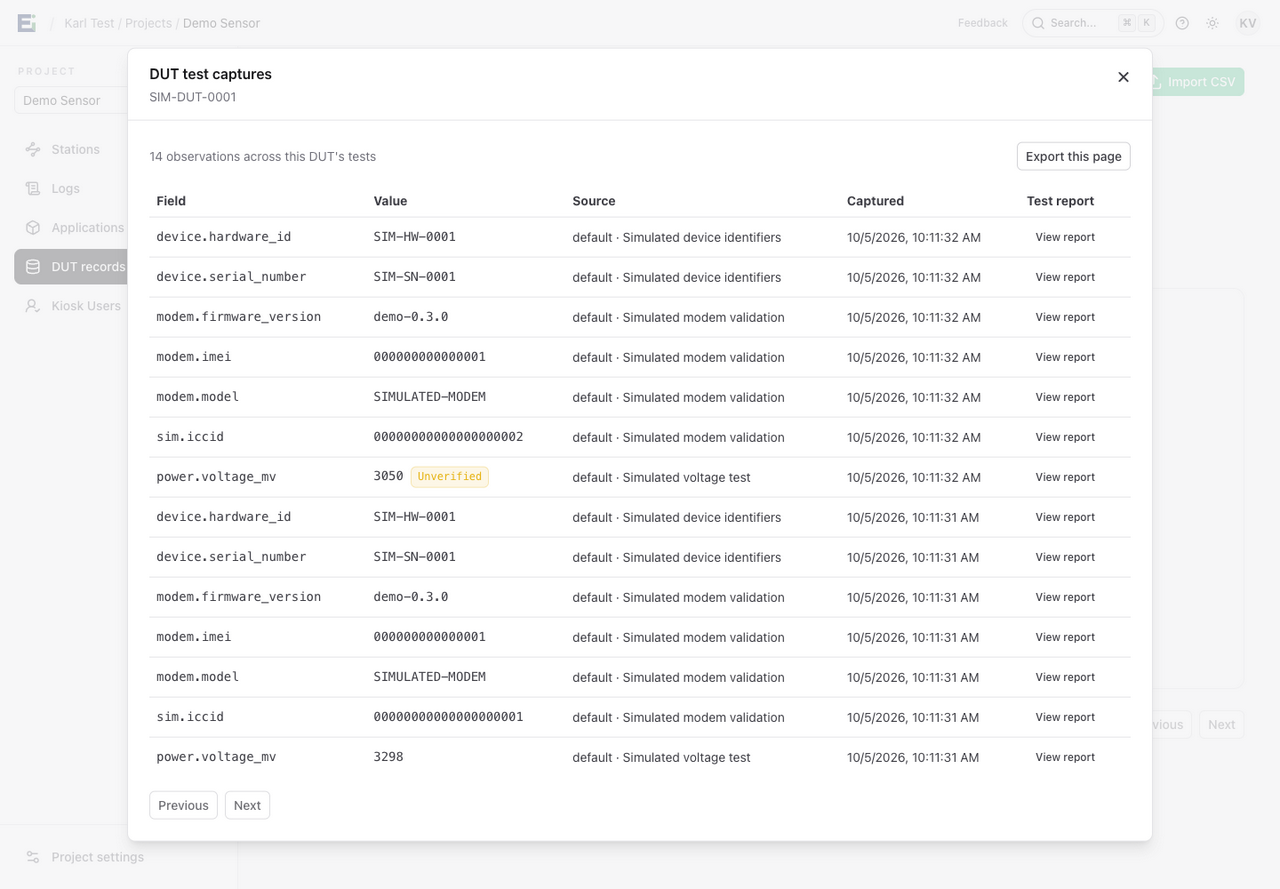
- Inspect the observations and their sources. Unverified marks a value that did not come from a successfully verified source.
- Select View report beside an observation to inspect that test's stages, captures, and warnings. Coordinated lane runs are combined in the report; full logs load on demand.
DUTs with captures appear even if they have no ID-pool assignment. Captured test values do not allocate or commit an ID. Access to captured data also does not grant access to reserved or committed pool values; see Roles and permissions.
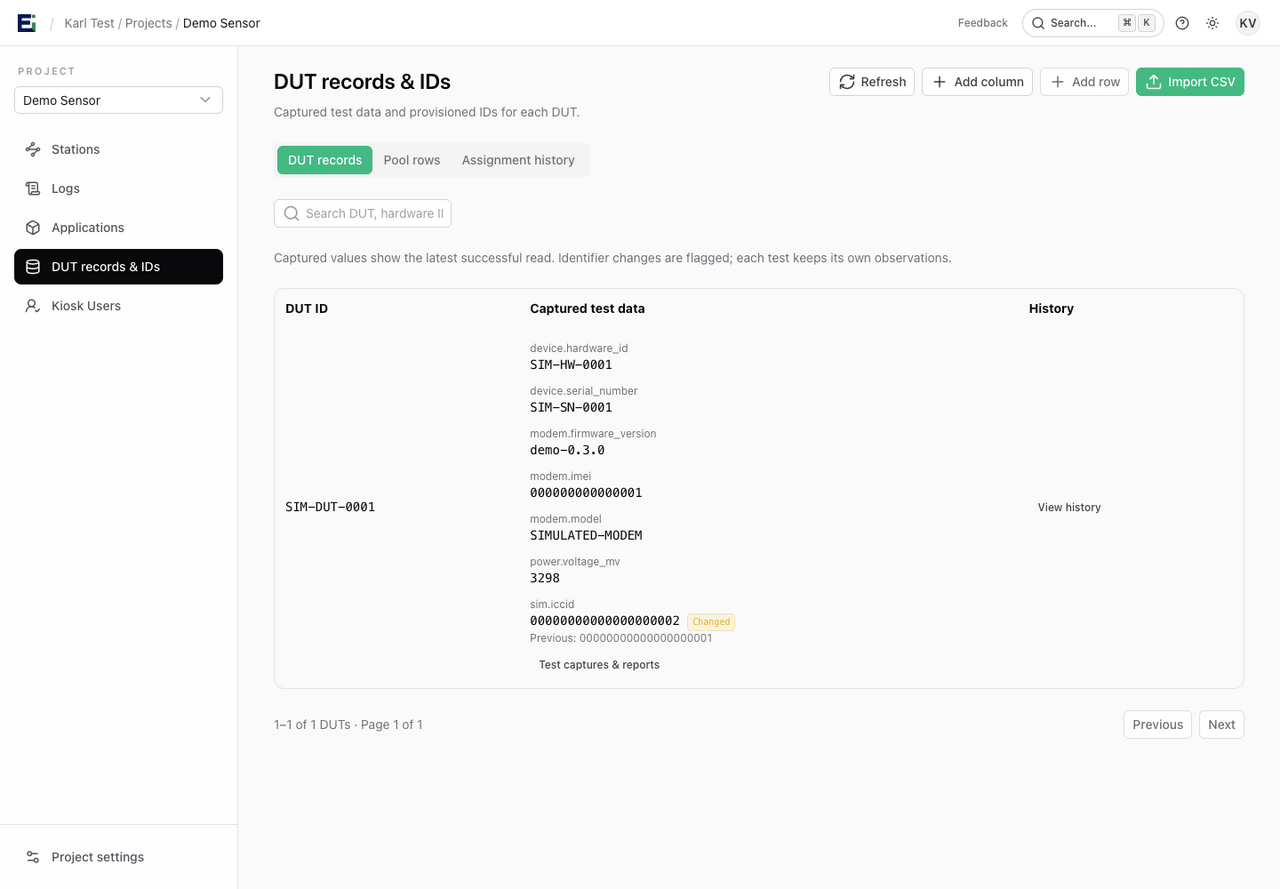
The screenshots on this page use Demo Sensor with simulated data and no connected hardware. The DUT SIM-DUT-0001 passed its first test, then failed a voltage retest while its modem check passed with a different ICCID.
Interpret a retest
| Retest result | Effect on the current DUT summary |
|---|---|
| A source successfully captures a value | Updates that field and its provenance. A verified subtest can contribute even if another subtest fails. |
| A stage fails or is interrupted, and its captures inherit that outcome | Keeps those observations as unverified history; does not replace the successful summary. |
| A field is omitted | Preserves the previous value. |
| Hardware ID, IMEI, ICCID, or IMSI changes | Shows Changed and the previous different successful value. |
| Model or firmware version changes | Retains history without an identifier change badge. |
The Changed badge records a historical identifier change. Equal retests do not clear it, and this release has no acknowledgement or reset action. Investigate the sources before treating a changed value as an expected component replacement.
In the simulated example, the summary keeps the successful voltage reading of 3298 mV. The failed retest's 3050 mV remains in history as Unverified. Its successfully verified modem values still update the summary, including the changed ICCID.
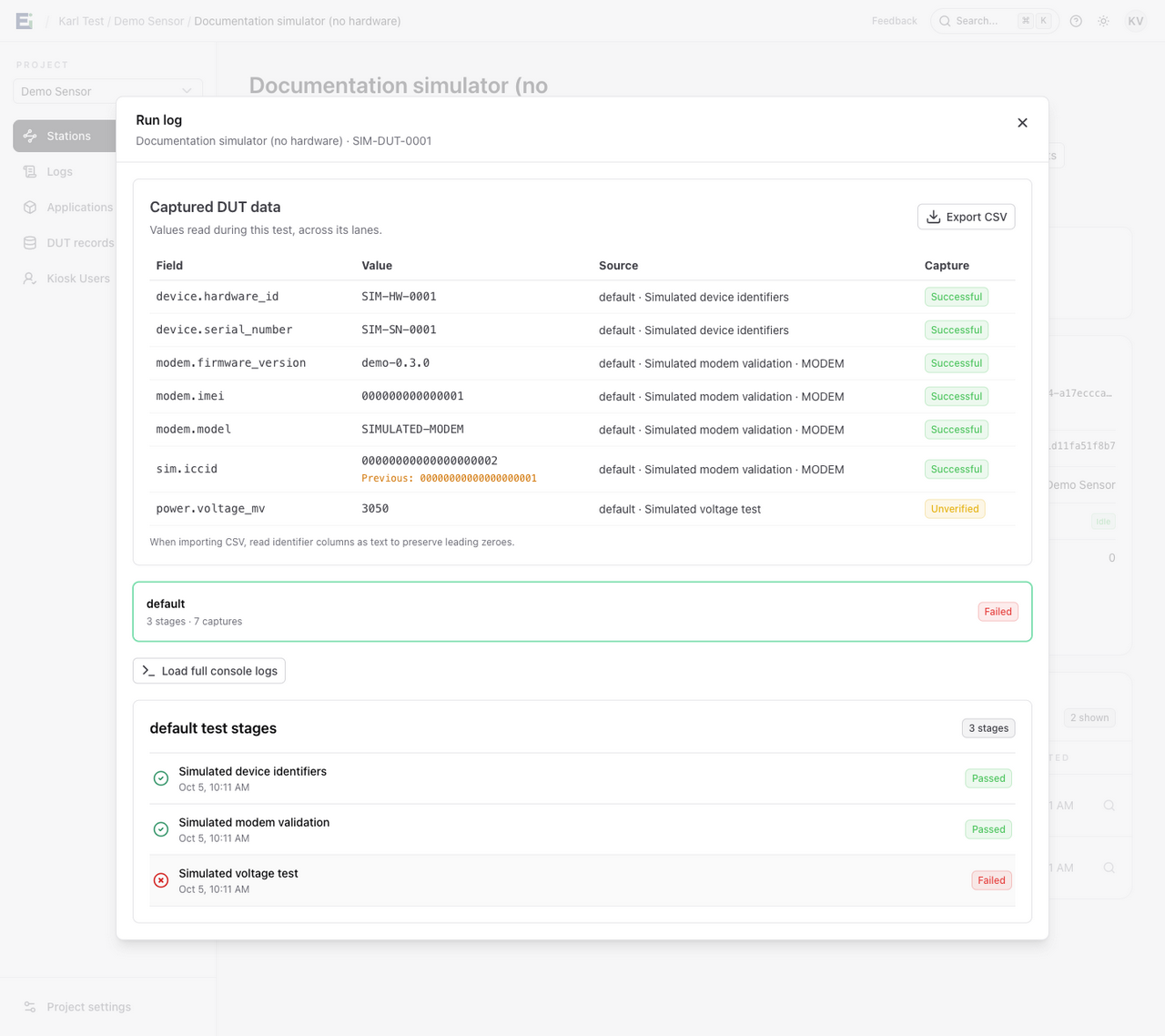
Delayed delivery from an older run does not replace a newer summary. Conflicting sources remain in history for inspection. Existing console logs are not automatically converted to captures.
Export evidence
Select Export CSV in a report to export its observations. The history dialog shows 50 observations per page; Export this page exports only the displayed page. Use Previous and Next to review further history.
Import identifier columns as text in spreadsheet tools to preserve leading zeros and long numbers. CSV cells beginning with formula characters are prefixed with an apostrophe; report JSON retains the original strings. API access covers reading structured reports without downloading raw logs.
Diagnose missing captures
A valid hardware outcome can be stored even when a capture snapshot is rejected. Read Some data could not be captured in the report, then inspect the station's rejected envelope and reason. Correct the mapping or limit violation before running a new test; keep the original evidence.
Captures are retained independently of console-log retention. Deleting a run or station preserves the project's capture history and source IDs, so the history can remain after the original report becomes unavailable. Deleting the project removes its capture data.
See Capture DUT values to add mappings or custom-stage captures and preserve report delivery across disconnects.